


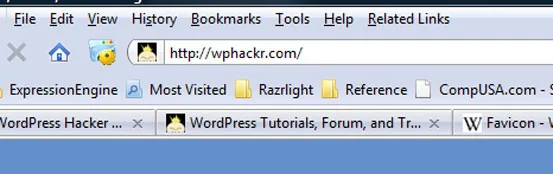
One of the little personalization details I like to add to any site I work on is a Favicon, that little icon you see next to the address bar in your browser. Even though it's one of the simplest changes you can make, many sites leave out this small detail for whatever reason. Well, in this article I'm going to show you how to add a Favicon to your WordPress-powered site.
First create the image
First of all, a favicon is really nothing more than a tiny png image with a .ico extension and sized to 16 pixels by 16 pixels (they can also be 32 by 32). So, the first thing you need to do is to create the image that you want to use; whatever you use, don't make it too complex because small detail tend to get lost when resized to a tiny 16 by 16 pixels.
For example, on this site I used the little WordPress Hacker cartoon that sneakily peaks at you over the top of every page. I originally started to use the entire cartoon, hands and all, but that amount of detail turned out to be too much and you couldn't quite tell what it was when resized to 16 by 16. So, I got rid of the hands and cropped the image to only include the top of the Hacker's head with his trademark blonde mohawk.
If you want to draw your own favicon, Favicon.cc has a cool tool that lets you draw your own icon while the Favicon in the browser updates in real time to reflect your changes. It'll even let you create animated favicons frame by frame. If you use this tool you can skip the next step as the tool will handle the conversion to .ico as well.
Next, convert your favicon to .ico format
Modern web browsers will generally let you get away with using a gif, png, or even a jpeg for your favicon, but to be compatible with older version of internet explorer, you'll have to convert the image to .ico format.
In order to do that, you can also use the Favicon.cc website, only this time, click the "Import Image" button on the left side of the page and upload your image. The tool will convert your image to .ico format and let you download the final product.
Finally, add the favicon to your site
By default, most browsers will look for a favicon in your site's root directory named favicon.ico. If you don't have any problem with that, just upload the file to your site's root directory, make sure it's named favicon.ico, and you should be all set. Keep in mind, this file is cached by your browser, so you may not see it until you clear your cache…incidentally, I've also had issues with the favicon showing up even after clearing my cache, but that problem usually resolves itself within a few hours. If the icon isn't recognized by default, you can follow the next step to be sure it gets picked up.
Now, what if you're like me and want to keep your favicon with your WordPress theme files, or maybe your favicon isn't being detected by your browser for some reason? In these cases, we need to tell the world where our favicon is. To do this you need to open up your theme file containing the site's <head></head> section…in my case that's header.php.
Then, assuming you save your favicon.ico file in your theme directory, add the following anywhere between the <head></head> tags.
1 | <link rel="shortcut icon" href="<?php bloginfo('template_url'); ?>/favicon.ico" /> |
If you save your favicon.ico somewhere else, you'll have to adjust the href attribute appropriately.
Make sure you clear your browser's cache after making the change.
Final words of advice
If you save your favicon in a location other than your site's root directory, you'll have to add the above link to the short icon file inside the <head></head> tags of every page on the site. For most WordPress installs, this isn't a problem since there is usually one header.php file containing the <head></head> tags that gets called on every page. Just keep that in mind, however, if you've got a different setup.
Also, along those same lines, you probably won't see the favicon when you log into the WordPress admin because the admin uses a different header that your theme, so you either have to also add the link to your favicon to the admin head section or just put the favicon in your site's root directory.
Personally, I like to save the favicon with my theme files and just copy it to the site's root directory as well. This allows me to maintain the portability of my theme and I can easily move it to another server if need be without the risk of leaving my trusty favicon behind. Then, on the new server I'd just copy the favicon to the new site root. That also prevents the need to edit the core header files.