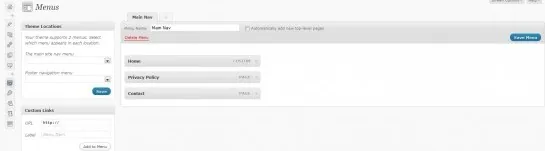


Well, WordPress 3.0 is out and I've got to say, I'm pretty impressed with it so far. One of the most immediately useful new features is the custom navigation menu tool. What may not be obvious, however, is exactly how to add support for this killer new feature to your theme. So, now that I've finally had time to play with it on a recent project, integrating WordPress into the existing design for the blog section of The Big Property List, here's a quick little WordPress 3.0 nav menu tutorial for you.
Required Steps
I'll cover these steps in more detail below, but this is a basic outline of what's required to take advantage of the custom navigation menus in WordPress 3.0:
- Define your custom nav menu in functions.php
- Define a function that WordPress will call in the event a particular navigation menu does not exist
- Create the navigation menus in the WordPress admin
- Assign the newly-created navigation menus to their appropriate locations in the WordPress admin
- Add function calls to display the navigation menus to your theme
Define Your Custom Navigation Menus
The first thing to do is let WordPress know about your new navigation menus and what you'd like to call them. So, open up functions.php and add something like the following:
1 2 3 4 5 6 7 8 9 10 | add_action('after_setup_theme', 'my_after_setup_function');function my_after_setup_function() {/*** The register_nav_menu function takes two parameters* @param string $location This is the location you'll reference when you call this nav menu in your theme code* @param string $description This is the description that will appear in the WordPress admin to help you assign a nav menu to the proper location*/register_nav_menu('Main Menu', 'The main site navigation menu');register_nav_menu('Footer Nav', 'Footer navigation menu');} |
Pretty simple. In case you didn't get it, the first parameter of register_nav_menu() is what you'll specify in the function call to tell WordPress which nav menu to display. The second parameter is what WordPress will show you in the navigation menu admin panel that helps you assign newly-created nav menus to their proper locations.
Define an empty navigation menu function
My testing shows WordPress does some weird stuff if you register a navigation menu (as we did above), add the function call to display that navigation menu (as we'll do below), but you don't actually create the navigation menu in the WordPress admin. A perfect example of this might be if a client tells you he wants to add footer navigation at some point, but isn't quite sure what he wants there just yet.
By defining a function to be run in the event a navigation menu is not created or assigned in the WordPress admin, you can future-proof things a bit.
Again, you'll add this to your functions.php file. In this case, I'll be returning an empty string, which is exactly what will be printed, but if you get creative, you might find a number of uses for this.
1 2 3 | function default_nav_menu() {return '';} |
Create the navigation menus in the WordPress admin
If you've read this far and you can't figure this out you need a swift kick in the teeth, but here are a few things to remember:
- It doesn't matter what you call your nav menu. Name it whatever you want.
- Can't find a "home" link in the pages list? Try creating a custom item pointing to your site's homepage
- I thought this list would be longer when I started it so here's another bullet for you to chew on.
Assign the newly-created navigation menus to their proper locations
Remember the description parameter in the register_nav_menu functions we created earlier? Take a look at the panel that says "Theme locations" and you'll see those descriptions above select boxes. Select the nav menu you want for each location and save it all.
Add function calls to display the navigation menus in your theme
Here's the code to display the navigation menus. You'll need to add this...you guessed it...where you want the navigation menu to appear:
1 2 3 | function default_nav_menu() {return '';} |
A few quick notes on this function:
- There are a lot of parameters you can use for this function. Check out the function reference here
- Notice that 'theme_location' is the same value we specified for the $location parameter in our register_nav_menu functions in functions.php
- Also notice that 'fallback_cb', or fallback callback, is the empty navigation menu function (default_nav_menu) we defined in functions.php
What about formatting?
Unfortunately, WordPress only gives you the option to output the navigation menu as an unordered list. For most cases that should be fine, but in my recent experience, I had to add those little vertical lines (you know, the pipe character) between each menu item to match an existing site design. So I used the str_replace function to address the issue:
1 2 3 | <?phpwp_nav_menu( array( 'theme_location' => 'Main Menu', 'sort_column' => 'menu_order', 'container_class' => 'main_nav', 'menu_class' => 'main_nav_menu', 'fallback_cb' => 'default_nav_menu' ) );?> |
There might be a better way to do this but I prefer not to make things too complicated.That's it.