


wo post recovery methods
So, the other day I deleted a post almost immediately after publishing it (although I'm convinced it was WordPress' fault and not mine ;-) ). In the past I've been able to recover deleted posts using Archive.org, but that only works if the post has been published for long enough to be archived by Archive.org. If Google's had time to index the post, I can search for it by title and site using the "site:sitename.com: post title" syntax, and clicking on the "Cached" link to pull up the copy of the page Google has cached on it's servers as you can see below.

Then I can just copy the text and republish the post. But again, this post was deleted almost immediately after publishing, so I had to find a different way.
Using the Firefox Cache to Recover a Post
Then it dawned on me that I had visited the post a few times while writing it and then once again after publishing, but before it got deleted, so Firefox would certainly have it cached...but how do I recover the post from the cache? Here's how I did it.
- I did a little searching and discovered you can access the Firefox cache by going to the address bar and typing "about:cache" without the quotes.
- You should see three sections as shown here:
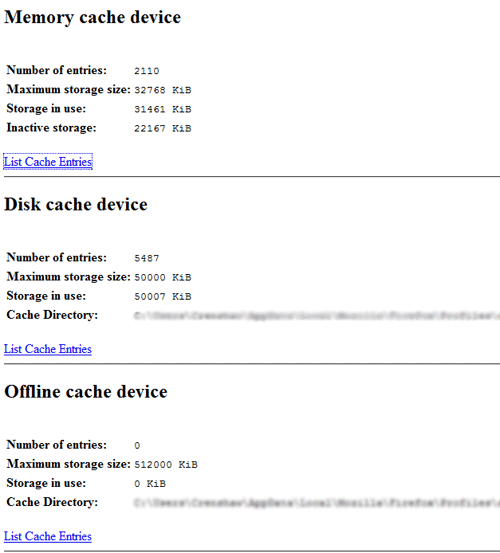
- You may need to search all three sections, but lets start with "Memory cache device" - click on the "List Cache Entries" link in that section
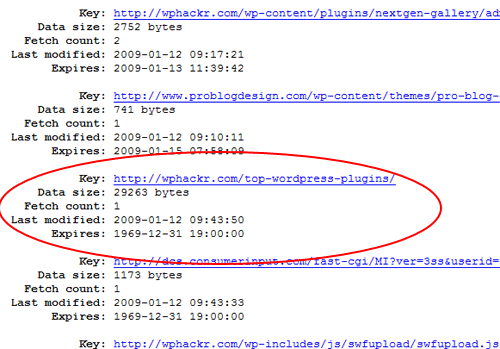
- After that you'll be faced with a [probably] huge list of all the URLs saved in the Firefox memory cache. Hit Ctrl + F and type the post slug you gave your original post. Here's mine after searching for "top-wordpress-plugins":
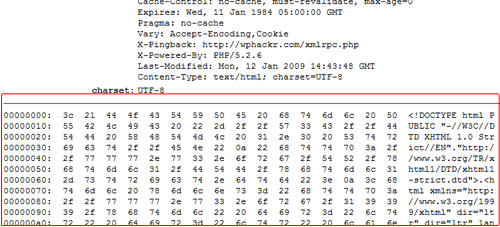
- Once you've found the post, click on the URL and you'll see another page full of what appears to be quite a bit of gibberish. Copy and paste the entire section, starting with what you see outlined in red below, into your text editor of choice, preferably one with Regular Expression search and replace functionality (take note of the right side of the image - it's the HTML code for the page we're looking to recover):
- Once you've got all that into your favorite text editor, you just need to get rid of all the extra stuff aside from your post content. I found it easiest to do this using Dreamweaver's regular expression search and replace. I'm using Dreamweaver's tool because other REGEX search and replace tools I've used just don't seem to work right for me. Here's the expression I used, which you can also see in the photo below: [0-9a-z]{8}:s*?([0-9a-z]{2}s*?){16}s
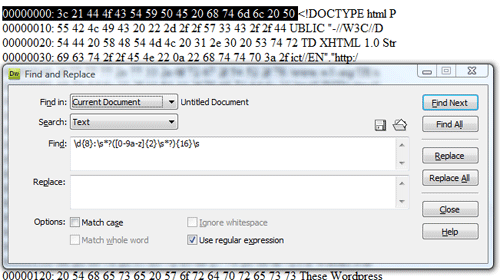
- That allowed me to get rid of all the extraneous characters, but I was still left with my post HTML in a narrow column down the page, so I needed to fix that...I used another regular expression to get rid of all the extra line breaks, but I had to go into the code view to get this done (did I mention the last REGEX was run in Design view?). This time it looked like this: <br />
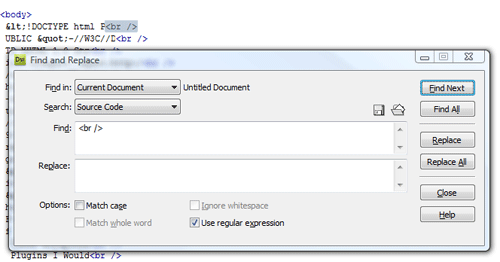
- Once that was done I ended up with the HTML code for my post nice and clean - albeit on one long wrapped line. From there I just found the post content, copied it, and then pasted it into the HTML editor for a new WordPress post.
- And that's it. It wasn't easy, but at least I didn't have to rewrite the entire post.
Conclusion
Is this the easiest method of recovering a post? Absolutely not! In fact, its a major hassle, and it's certainly a last resort, but it's better than rewriting that entire post you just spent a few hours on.